


Product
Enhancing User Experience with Light and Dark Theme Options in Home Design
The Light and Dark Theme feature in Home Design application allows you to customize the appearance of the interface according to your preference and working environment. By providing two different visual modes, the application gives you more flexibility to create a comfortable and personalized workspace while designing your projects. Whether you prefer a bright and clean interface or a darker workspace with reduced visual brightness, you can easily choose the theme that best suits your workflow.
The Light Theme provides a clear and traditional interface with brighter backgrounds, making it easier to view menus, tools, and design elements in well-lit environments. On the other hand, the Dark Theme offers a darker interface that can provide a more comfortable viewing experience, especially during extended design sessions or in low-light environments. It helps reduce screen brightness and creates a modern look while working on your home design projects.
With the ability to switch between Light and Dark Themes, Home Design gives you greater control over your overall application experience. This customization option helps improve usability, enhances visual comfort, and allows you to work more efficiently by selecting the interface style that matches your personal preference and working conditions.
How to Switch Between Light and Dark Themes
To change the application theme, first launch the application and open an existing project or a sample project.
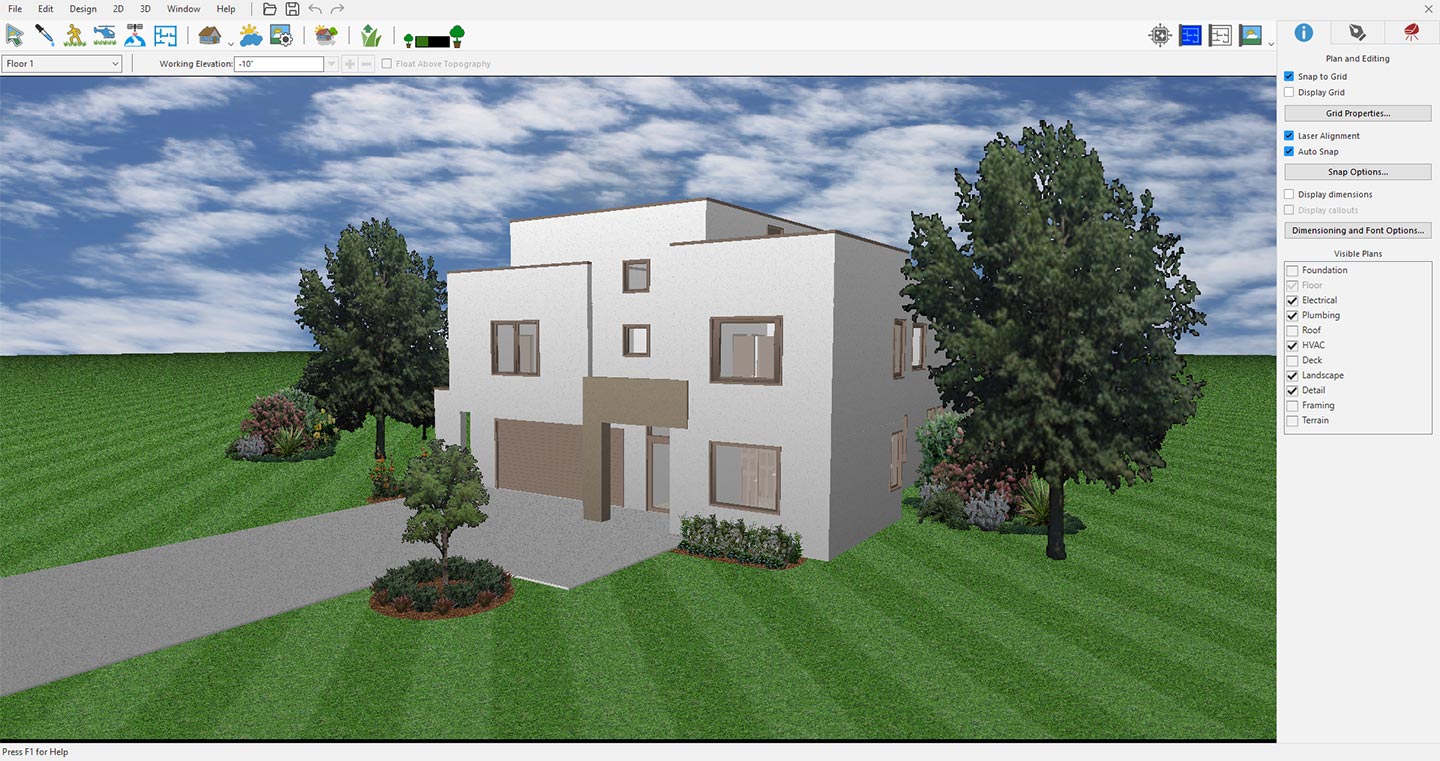
Opening an existing or sample project in application
Once the project is loaded, navigate to the Preferences option from the Edit menu.
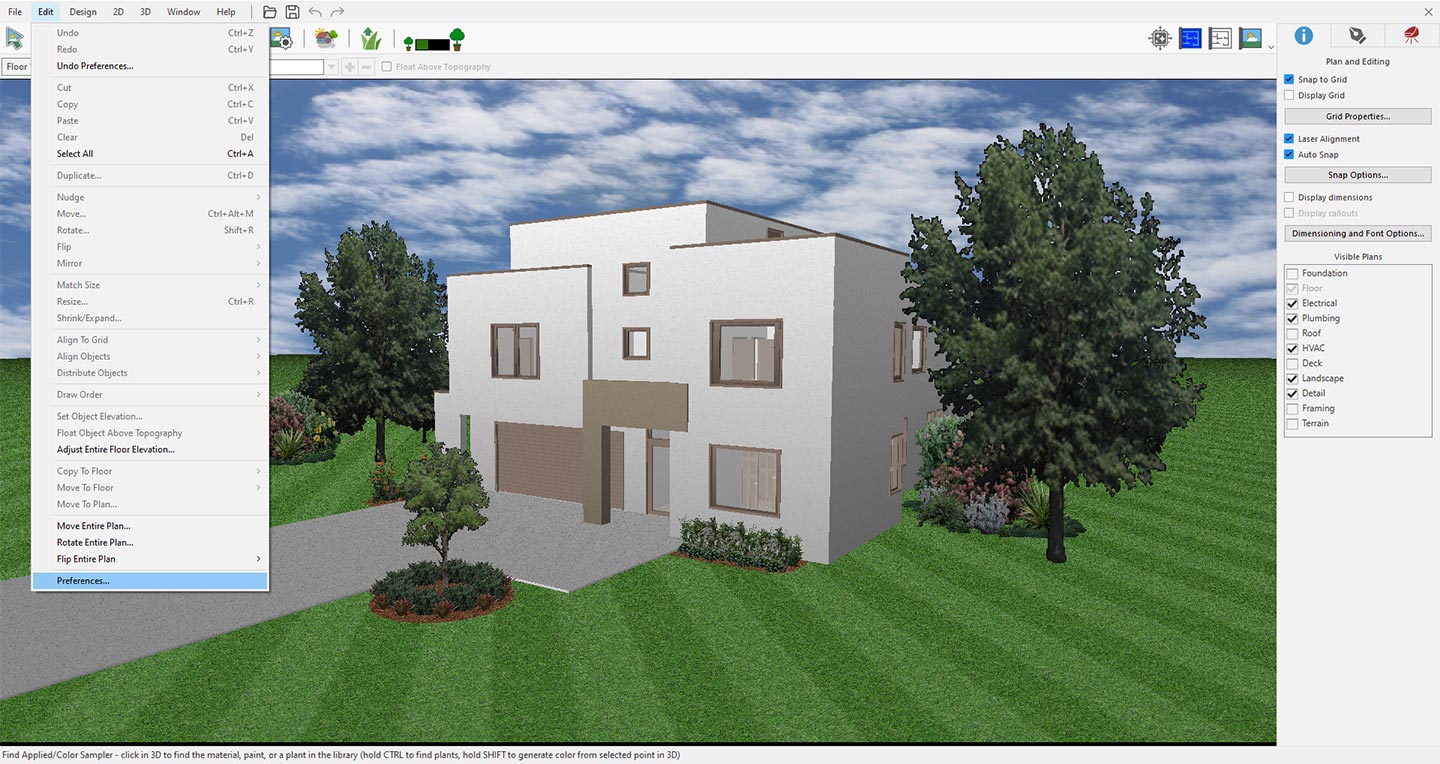
Accessing application preferences settings
In the Preferences window, select the User Interface option.
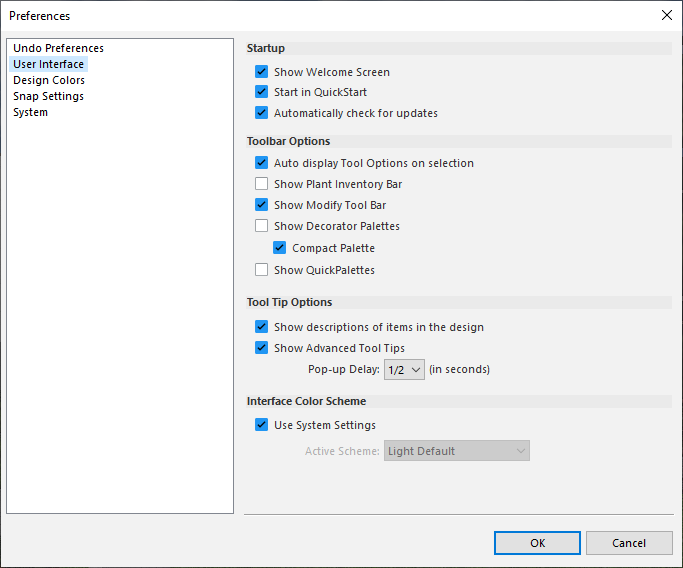
Accessing User Interface settings to customize the application theme
Under the Active Scheme dropdown menu, you can choose your preferred theme and switch between the available Light and Dark theme options according to your preference.
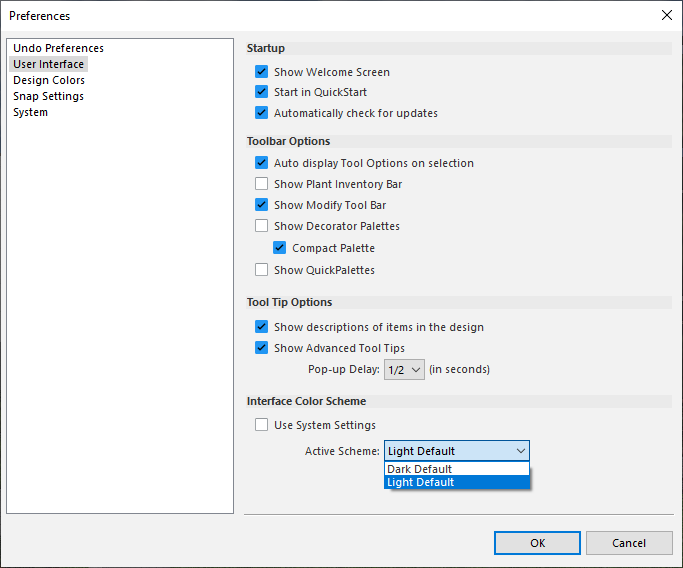
Selecting the desired interface theme in User Interface settings
The Light Default theme provides a bright and clean interface designed for comfortable use in well-lit environments. It uses lighter backgrounds and clear visual elements, making menus, toolbars, and design options easy to view and navigate. This theme offers a familiar workspace experience and is suitable for users who prefer a traditional interface while working on their home design projects.
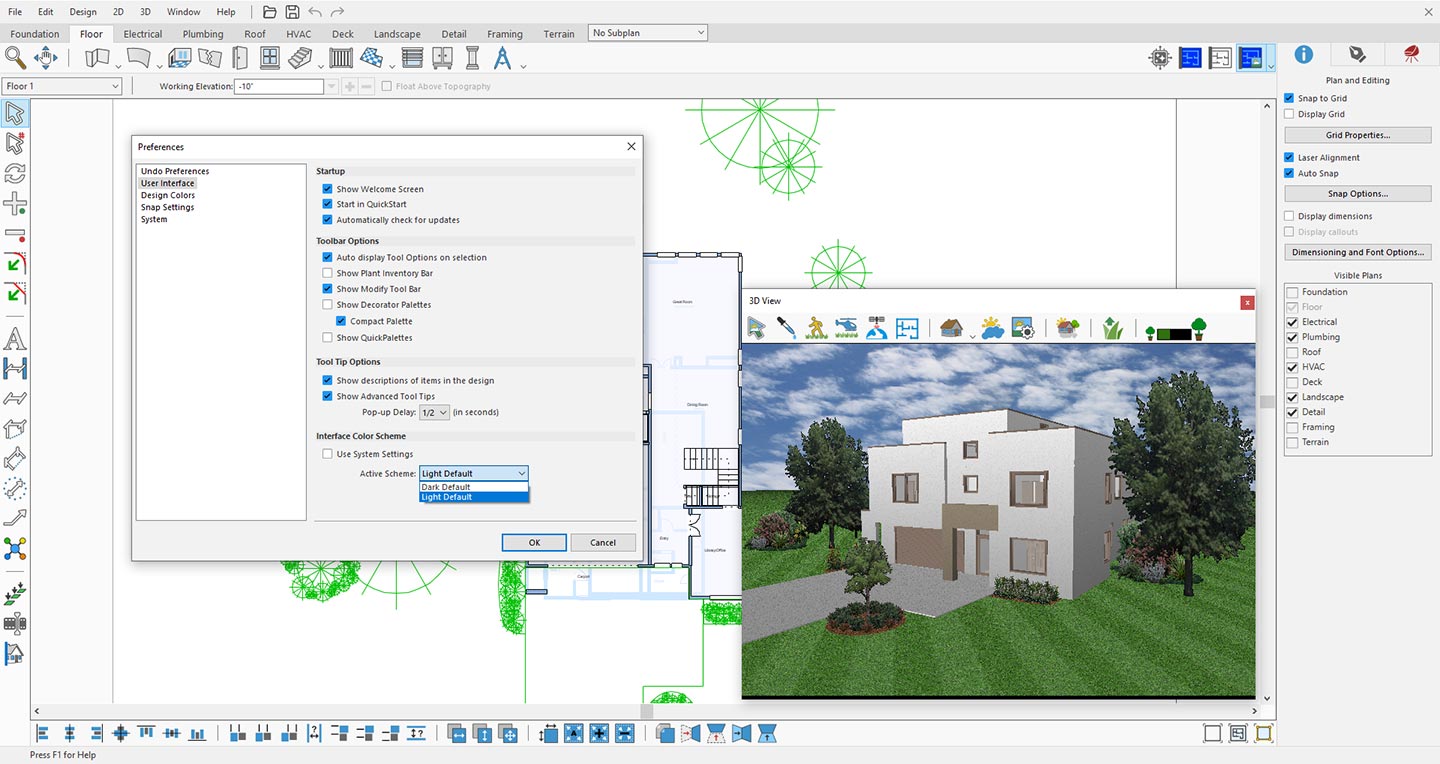
Previewing the application interface with Light Default theme
The Dark Default theme provides a modern interface with darker backgrounds and a balanced contrast between different application elements. It is designed to create a more comfortable viewing experience, especially during extended working sessions or in low-light environments. The darker interface helps reduce visual brightness while maintaining clear visibility of tools, menus, and design components, allowing you to focus more on your project.
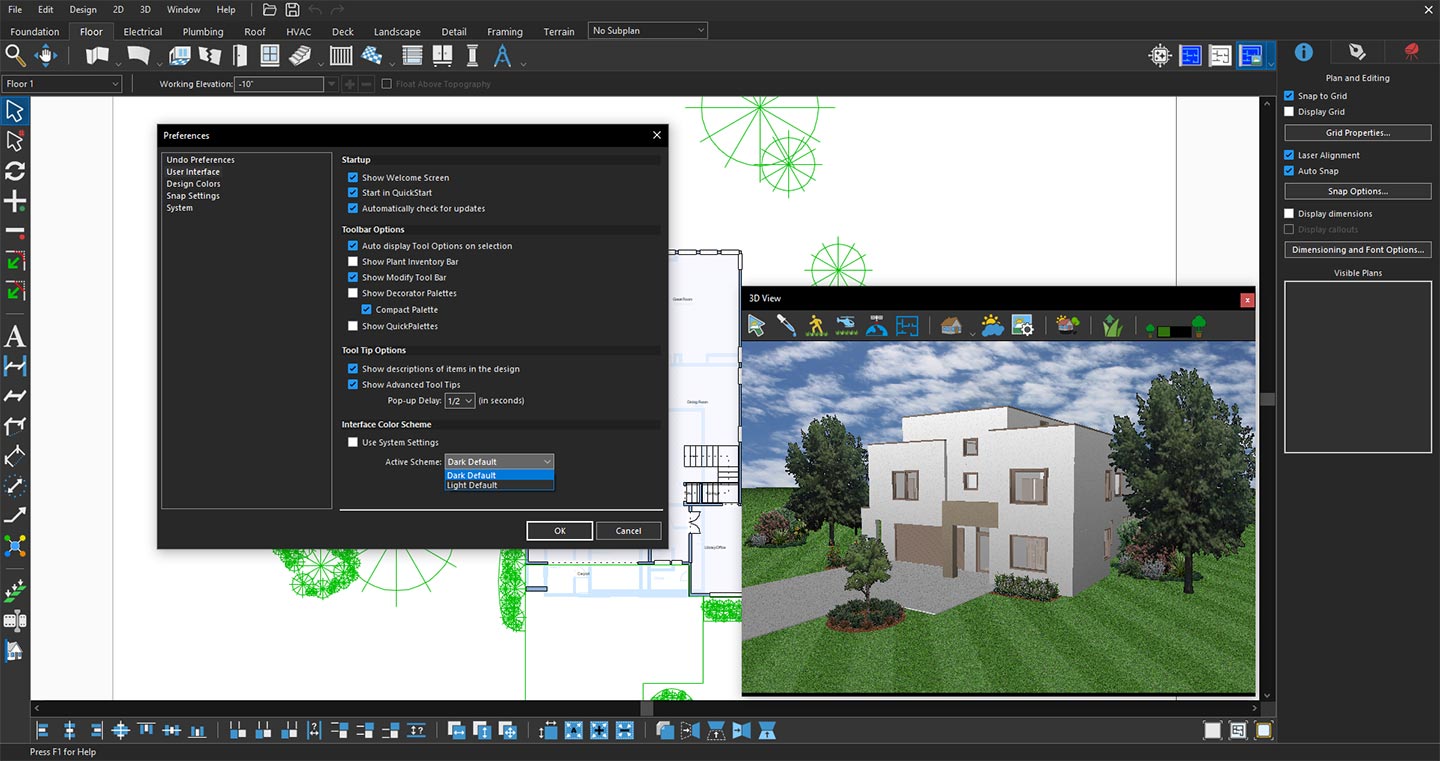
Previewing the application interface with Dark Default theme
The Use System Settings option allows the Home Design application to automatically follow the theme preference selected in your operating system. When this option is enabled, the application theme changes dynamically based on your system appearance settings.
For example, if your operating system is set to Light Mode, the application will automatically use the Light theme. Similarly, if your system is switched to Dark Mode, the application will adapt and display the Dark theme. This option provides a seamless experience by keeping the application appearance synchronized with your overall system preferences, eliminating the need to manually change the theme settings.
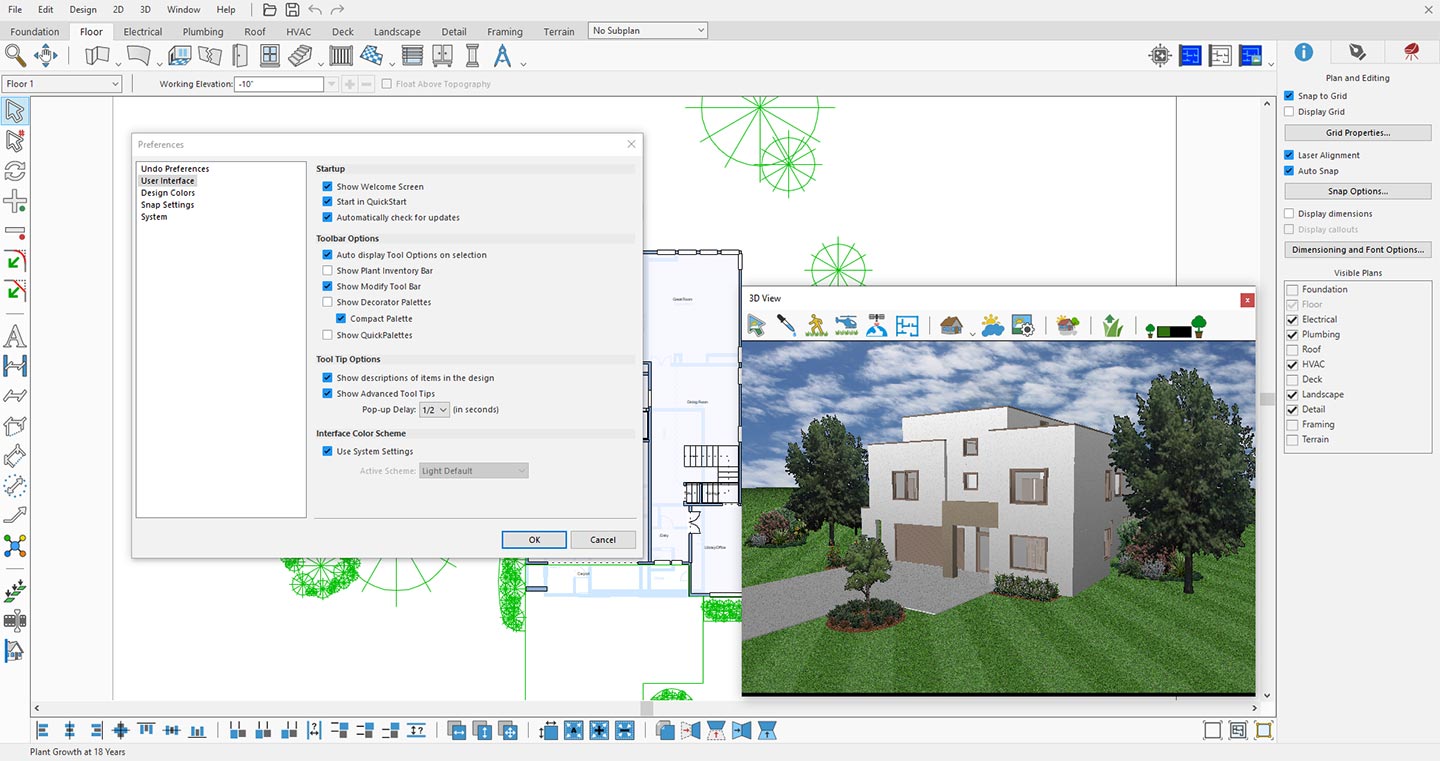
Selecting Use System Settings to automatically apply the system theme
Conclusion
The Light and Dark Theme options in Home Design application provide greater flexibility and control over your overall design experience. By allowing you to customize the interface appearance according to your preference and working environment, these themes help create a more comfortable and personalized workspace.
Whether you prefer the bright and clear layout of the Light Default theme or the modern and comfortable appearance of the Dark Default theme, you can easily select the option that best fits your workflow. This customization enhances usability, improves visual comfort, and allows you to work more efficiently while creating your home design projects.